When managing changes in SharePoint, one of the biggest challenges organizations face is resolving version conflicts that can arise when multiple users edit the same document or list item simultaneously. In this article, we’ll explore best practices for managing changes and discuss the features available within SharePoint to help you resolve version conflicts efficiently.
To enhance the core SharePoint versioning history features, check out the following custom developed SharePoint web parts and then read more about best practices and conflict resolution below.
Version History Manager Web Part
The Version History web part displays all versions of a file.

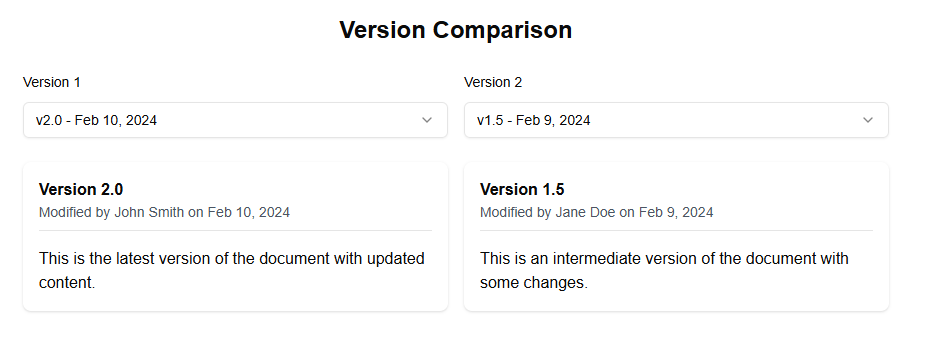
Version Comparison Web Part
The Version Comparison web part allows you to compare two versions of a document.
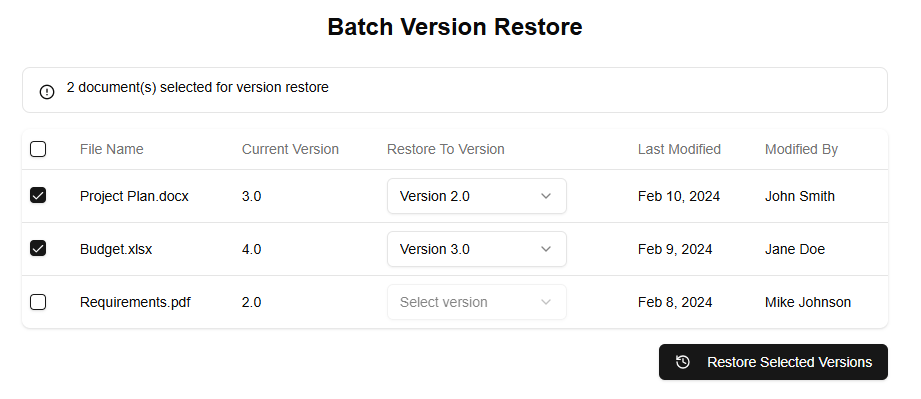
Version Batch Operations Web Part
The Batch Version Restore web part allows you to restore multiple files to previous versions at once.
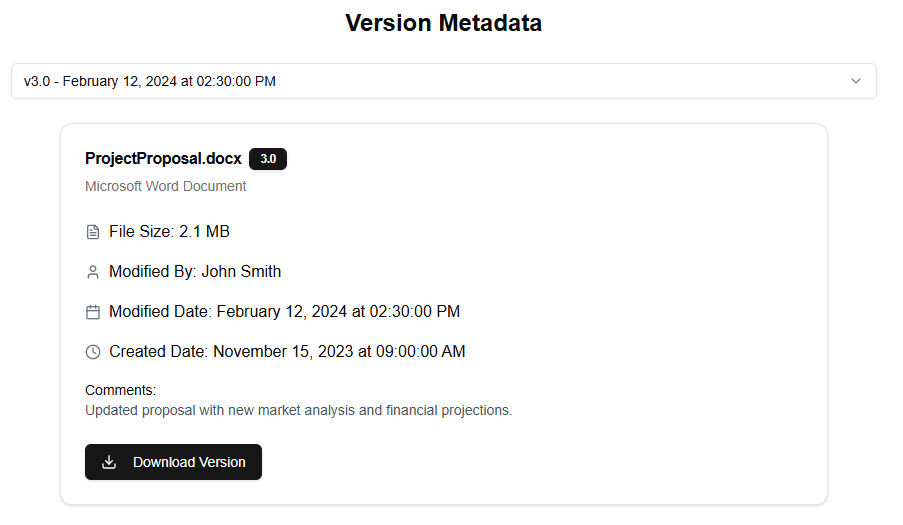
Version Detailed Metadata Web Part
The Version Detailed Metadata web part displays detailed information about a specific version of a file.
Understanding Version Conflicts
Version conflicts occur when two or more users make changes to the same file or item in SharePoint at the same time. When one user saves their changes, the other user’s edits may be lost or overwritten, resulting in a conflict. The most common types of version conflicts are:
- File-level conflicts: Multiple users editing the same file simultaneously.
- List-item-level conflicts: Multiple users editing the same list item simultaneously.
Best Practices for Managing Changes
To minimize the risk of version conflicts and ensure that changes are managed effectively, follow these best practices:
- Use SharePoint’s built-in versioning: Enable versioning on your libraries or lists to keep track of all changes made to files or items. This allows you to compare different versions and resolve any conflicts.
- Implement a change control process: Establish a clear change control process that outlines how changes will be managed, including who can make changes, when, and why. This helps ensure that changes are properly reviewed and approved before they’re implemented.
- Use SharePoint’s check-out/check-in features: Allow users to check out files or items before making changes, ensuring that only one person can edit the item at a time. When the user checks in their changes, others can access the updated version.
- Monitor changes regularly: Regularly review change logs and monitor changes made to critical documents or items to identify potential conflicts early on.
Resolving Version Conflicts within SharePoint
When a version conflict arises, use the following features within SharePoint to resolve it:
- Compare Files: Use this feature to compare different versions of a file and decide which one to keep.
- Check In/Check Out: Check in the user’s changes and overwrite the previous version, or check out the item again to allow others to access the original version.
- Manage Versions: Review and manage different versions of a file or item, allowing you to revert to a previous version if needed.
Additional Tips
To further minimize the risk of version conflicts:
- Communicate with users: Educate users on how to use SharePoint’s features effectively and ensure they understand the change control process.
- Implement workflows: Use SharePoint’s workflow features to automate tasks, such as approval processes, which can help reduce the likelihood of version conflicts.
- Use metadata: Organize files and items using metadata, making it easier to find and manage related documents or items.
By following these best practices and leveraging the features within SharePoint, you’ll be better equipped to manage changes and resolve version conflicts efficiently, ensuring that your organization’s collaboration tools remain effective and reliable.