Check out these SharePoint App templates to implement a board of director’s site.

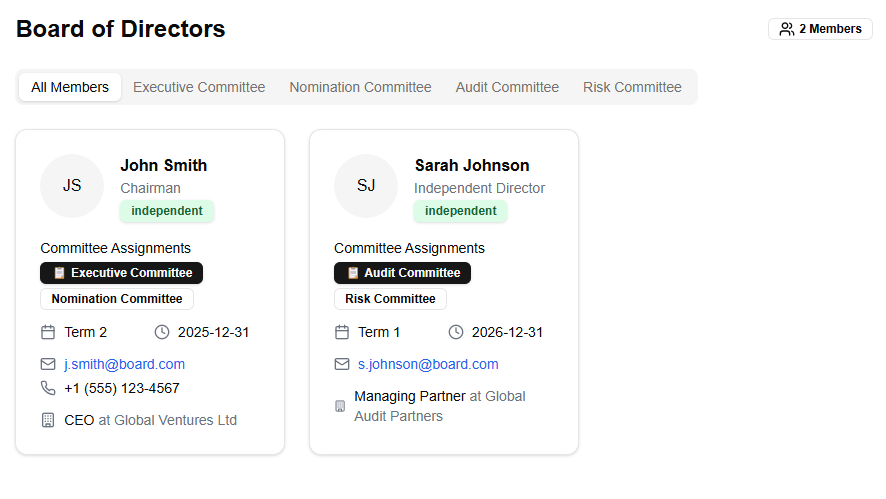

Implementing a Board of Directors site in SharePoint provides a secure and organized platform for managing board meetings, documents, and communications. SharePoint’s permissions and version control ensure that sensitive information is only accessible to authorized members. It enables seamless collaboration through document libraries, discussion boards, and integrated workflows, improving efficiency in decision-making and record-keeping. With automated notifications and customizable views, board members stay informed and engaged.
How to Create a Board of Directors List in SharePoint
- Create a List
- Go to your SharePoint site.
- Click Site Contents > New > List.
- Name the list (e.g., “Board Members”) and click Create.
- Add Fields (Columns)
- Open the list and click + Add column.
- Add essential fields such as:
- Member Name (Single line of text)
- Role/Title (Choice: Chairperson, Treasurer, Secretary, etc.)
- Term Start Date (Date and Time)
- Term End Date (Date and Time)
- Contact Email (Single line of text)
- Status (Choice: Active, Former)
- Create Views
- Click on All Items (top-right) and select Create new view.
- Choose from different view types:
- Standard View – Displays a table of board members.
- Calendar View – Helps track term start and end dates.
- Gallery View – Provides a visual layout of board members.
- Filtered Views – For example, create a view showing only “Active” members.
- Configure filters, sorting, and grouping as needed, then Save the view.
By setting up a Board of Directors site in SharePoint, organizations ensure efficient governance, improved document management, and secure collaboration among board members.