Check out these SharePoint App templates to implement a customer relationship management (CRM) system.


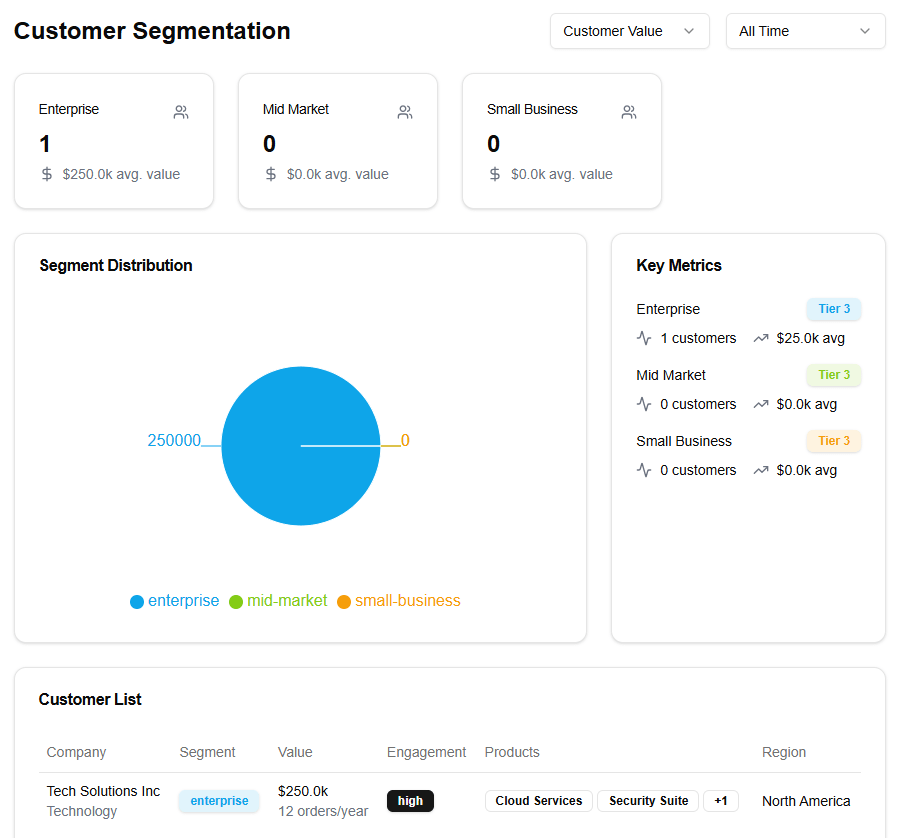
Implementing Customer Relationship Management (CRM) in SharePoint provides a centralized and customizable platform to track customer interactions, manage sales pipelines, and store key client data. With SharePoint’s built-in security, version control, and integration with Power Automate, Power BI, and Outlook, businesses can streamline communication, improve customer engagement, and enhance reporting. By leveraging lists, document libraries, and workflows, teams can efficiently manage customer relationships and drive business growth.
How to Create a CRM List in SharePoint
- Create a List
- Go to your SharePoint site.
- Click Site Contents > New > List.
- Name the list (e.g., “Customer Contacts”) and click Create.
- Add Fields (Columns)
- Open the list and click + Add column.
- Add important fields such as:
- Customer Name (Single line of text)
- Company Name (Single line of text)
- Email Address (Single line of text)
- Phone Number (Single line of text)
- Status (Choice: Lead, Prospect, Customer, Inactive)
- Last Contact Date (Date and Time)
- Next Follow-up Date (Date and Time)
- Assigned Representative (Person or Group)
- Create Views
- Click on All Items (top-right) and select Create new view.
- Choose from different view types:
- Standard View – Displays all customer records in a table format.
- Calendar View – Tracks follow-up and last contact dates.
- Gallery View – Provides a more visual representation of customer profiles.
- Filtered Views – Create views such as “Active Customers” or “Leads Only” based on status.
- Configure filters, sorting, and grouping as needed, then Save the view.
By implementing CRM in SharePoint, businesses can centralize customer information, improve team collaboration, and automate key processes to enhance customer relationships and drive revenue.