Version control is an essential aspect of managing changes in any collaborative environment, including SharePoint. When multiple users are working together on a shared document or site, it’s crucial to track who made what changes, when they were made, and why.
To enhance the core SharePoint versioning history features, check out the following custom developed SharePoint web parts and then read more about best practices and features below.
Version History Manager Web Part
The Version History web part displays all versions of a file.

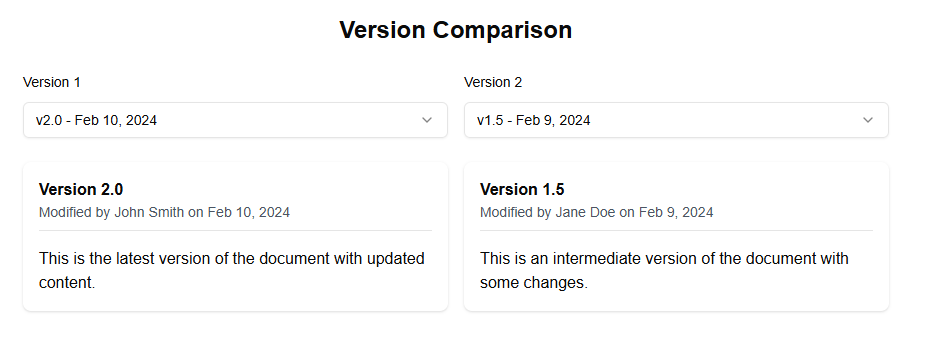
Version Comparison Web Part
The Version Comparison web part allows you to compare two versions of a document.
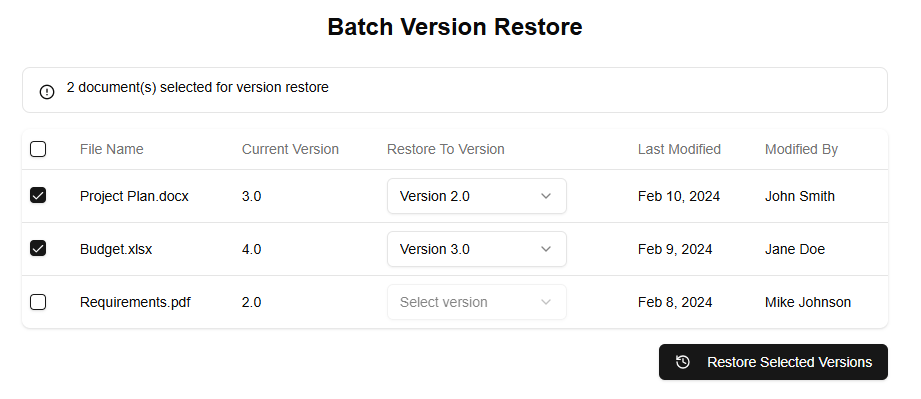
Version Batch Operations Web Part
The Batch Version Restore web part allows you to restore multiple files to previous versions at once.
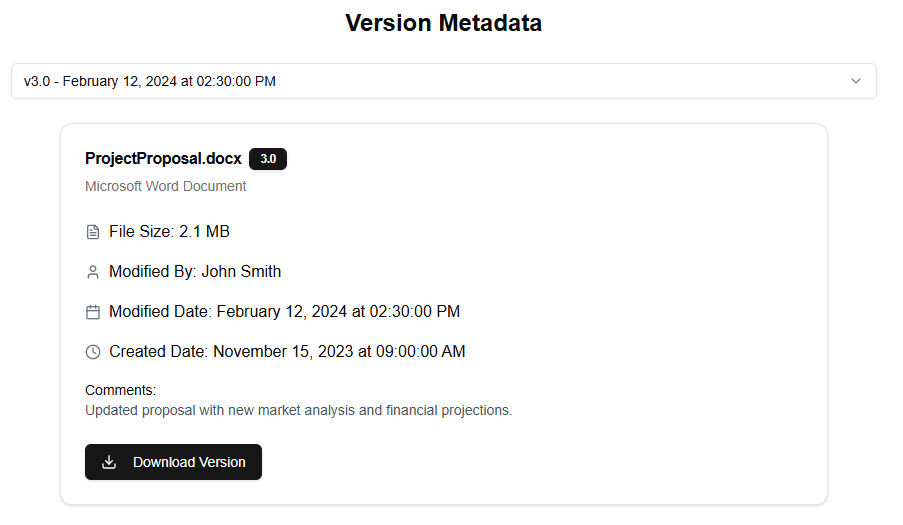
Version Detailed Metadata Web Part
The Version Detailed Metadata web part displays detailed information about a specific version of a file.
Best Practices for Managing Changes
- Establish a Change Management Policy: Before making any changes in SharePoint, define a change management policy that outlines who can make changes, when they can be made, and how they should be documented. This will help ensure that all users are aware of the rules and guidelines for making changes.
- Use Version History: SharePoint’s version history feature allows you to track all changes made to a document or site, including who made the change, when it was made, and what the change was. Regularly review version history to stay informed about changes and identify any potential issues.
- Implement Check-In/Check-Out: The check-in/check-out feature in SharePoint allows multiple users to work on the same document simultaneously without conflicts. When a user checks out a document, others cannot edit it until they check it back in.
- Set Permissions Correctly: Ensure that permissions are set correctly for all users and groups working on a site or document. This will prevent unauthorized changes and ensure that only approved users can make changes.
- Use Workflows: SharePoint’s workflow feature allows you to automate business processes, including version control. Create workflows that track the progress of changes and notify relevant stakeholders.
Features to Use Within SharePoint
- Version History: As mentioned earlier, version history is a valuable tool for tracking changes made to documents or sites. Regularly review version history to stay informed about changes and identify any potential issues.
- Check-In/Check-Out: Implementing check-in/check-out ensures that multiple users can work on the same document simultaneously without conflicts.
- Workflows: Use SharePoint’s workflow feature to automate business processes, including version control. Create workflows that track the progress of changes and notify relevant stakeholders.
- Document Libraries: Organize your documents in libraries, which provide a centralized location for storing and managing files. This will help you keep track of versions and ensure that all users have access to the latest files.
- Site Collections: Site collections allow you to organize sites by theme or department, making it easier to manage changes across multiple sites.
By implementing these best practices and features within SharePoint, you’ll be able to effectively manage changes, track version history, and collaborate with others in a controlled environment.
SharePoint Version Control: Best Practices for Managing Changes and Features to Use Within SharePoint
SharePoint is an excellent platform for collaboration and document management, but it’s only effective when changes are managed properly. With its built-in version control system, you can track and manage changes to your documents and files, ensuring that everyone has access to the most up-to-date information.
Best Practices for Managing Changes:
- Establish a clear change management process: Define a process for requesting, reviewing, and approving changes before they’re implemented in SharePoint. This ensures that all stakeholders are informed and aligned with the changes.
- Use version labels correctly: Version labels can help you track different versions of your documents. Use them to label specific milestones or stages in your document’s lifecycle, such as “draft,” “review,” or “final.”
- Create a regular backup schedule: Schedule regular backups of your SharePoint site and its contents to ensure that data is preserved in case something goes wrong.
- Monitor and analyze changes: Use SharePoint’s built-in analytics tools to monitor and analyze the frequency and types of changes being made, helping you identify trends and areas for improvement.
Features to Use Within SharePoint:
- Version History: This feature allows you to view a record of all versions of your document, along with details such as the date it was modified and who made the change.
- Check-in/Check-out: This feature allows users to check out a document or file before making changes, ensuring that only one person can modify it at a time.
- Auditing: SharePoint’s auditing feature provides a record of all actions taken on your site, including changes, uploads, and deletions.
- Permissions: Use permissions to control who has access to specific documents or folders within your SharePoint site.
- Content Approval: This feature allows you to set up an approval process for content before it becomes live on the site.
Tips for Effective Change Management:
- Define roles and responsibilities: Clearly define the roles and responsibilities of users involved in change management, ensuring that everyone knows their part in the process.
- Set clear expectations: Establish clear expectations for how changes will be handled and what the consequences are if they’re not followed correctly.
- Use collaboration tools: Leverage SharePoint’s collaboration features to facilitate communication among team members and stakeholders during the change management process.
By following these best practices and using SharePoint’s built-in version control features, you can ensure that your organization’s data is managed effectively and securely.