SharePoint version history provides a record of all changes made to documents, lists, or libraries over time. This feature is useful in tracking changes, monitoring document evolution, and maintaining a record of previous versions.
To enhance the core SharePoint versioning history features, check out the following custom developed SharePoint web parts and then read more about best practices and features below.
Version History Manager Web Part
The Version History web part displays all versions of a file.

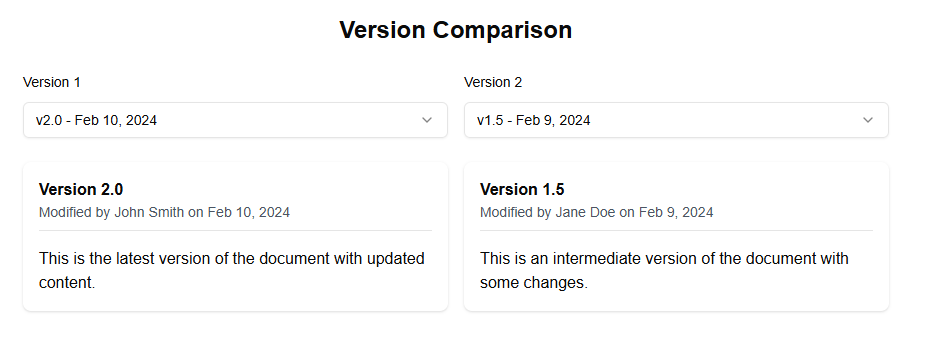
Version Comparison Web Part
The Version Comparison web part allows you to compare two versions of a document.
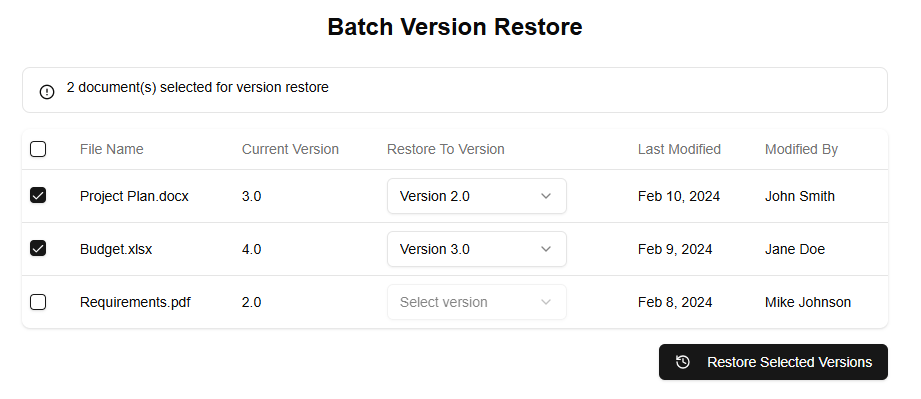
Version Batch Operations Web Part
The Batch Version Restore web part allows you to restore multiple files to previous versions at once.
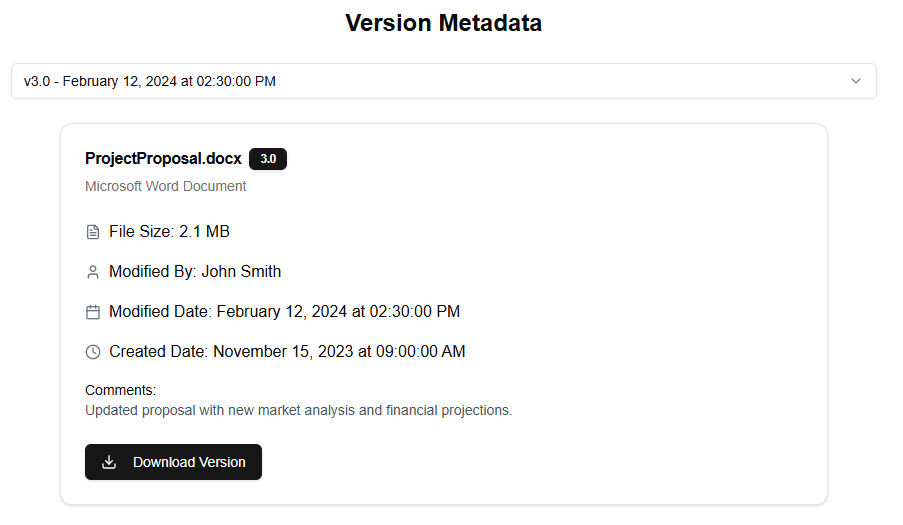
Version Detailed Metadata Web Part
The Version Detailed Metadata web part displays detailed information about a specific version of a file.
Best Practices:
- Create a centralized location: Designate a central location where you can store all your documents and files that require version control. This could be a specific site or library.
- Use a consistent naming convention: Establish a consistent naming convention for your files to make it easy to identify and track changes. For instance, use the date as part of the filename, such as “Report_2023-02-15.docx”.
- Set up versioning: Enable versioning on the document library or list where you’re storing files that require tracking. You can do this by going to the library settings and selecting “Versioning” under the “General Settings” section.
- Create a workflow: Establish a workflow for reviewing and approving changes to documents. This could include tasks such as creating a draft, sending it out for review, and then approving or rejecting the change.
- Track changes: Use SharePoint’s built-in version history feature to track changes made to files over time. You can view the version history of a file by clicking on the “File” tab in the ribbon and selecting “Version History”.
- Use SharePoint’s built-in features: Take advantage of SharePoint’s built-in features such as content approval, workflow, and auditing to ensure that all changes are tracked and approved.
Version History Features
- Version History: This feature provides a record of all changes made to files over time. You can view the version history by clicking on the “File” tab in the ribbon and selecting “Version History”.
- Content Approval: This feature allows you to approve or reject changes to content before it becomes live. You can set up content approval workflows that send notifications to stakeholders when a change is made.
- Workflow: SharePoint’s workflow feature enables you to create custom workflows for reviewing and approving changes. You can add tasks, conditions, and actions to create complex workflows.
- Auditing: This feature provides a record of all changes made to files or lists over time. You can use auditing to track who made changes, when they were made, and what was changed.