SharePoint version labels are an essential feature that helps you identify changes made in your SharePoint site over time. With multiple versions of SharePoint available, it’s crucial to keep track of updates and changes to ensure consistency and maintain a clear audit trail.
To enhance the core SharePoint versioning history features, check out the following custom developed SharePoint web parts and then read more about version label best practices and features below.
Version History Manager Web Part
The Version History web part displays all versions of a file.

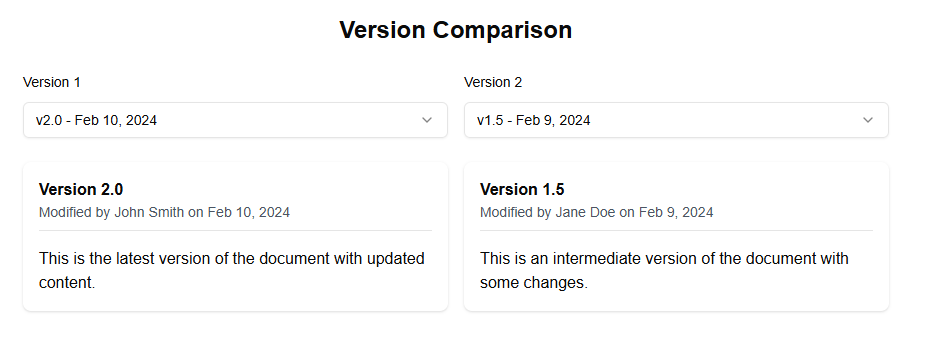
Version Comparison Web Part
The Version Comparison web part allows you to compare two versions of a document.
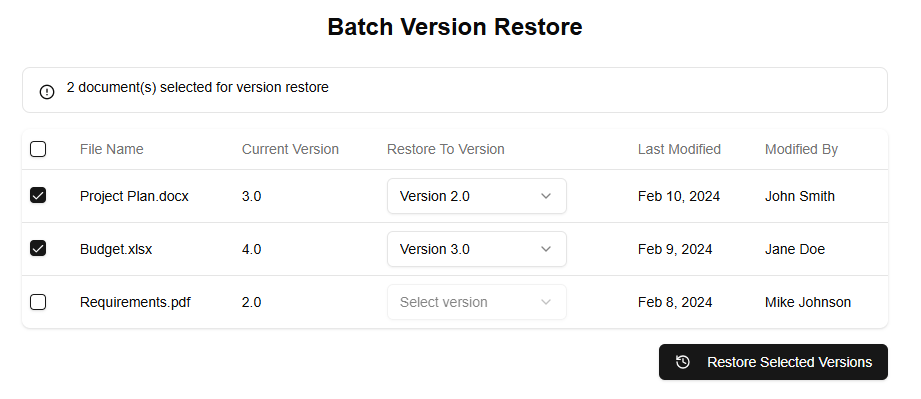
Version Batch Operations Web Part
The Batch Version Restore web part allows you to restore multiple files to previous versions at once.
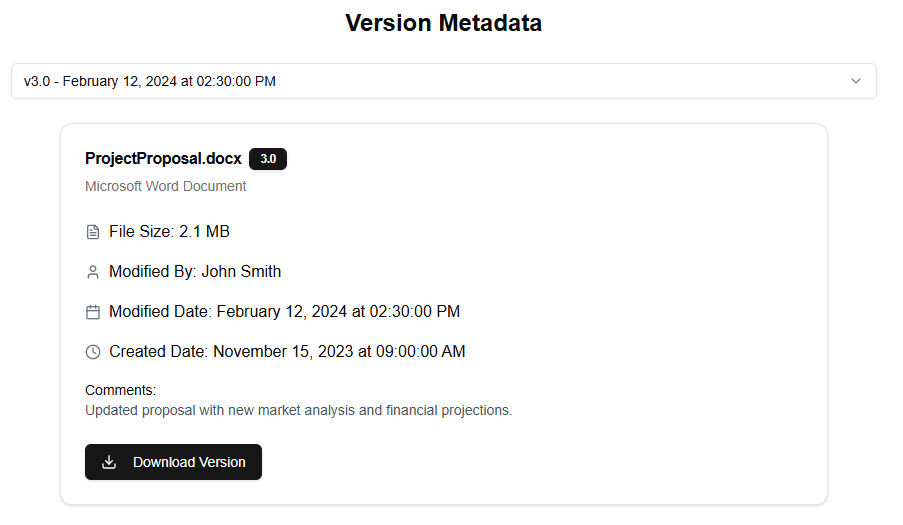
Version Detailed Metadata Web Part
The Version Detailed Metadata web part displays detailed information about a specific version of a file.
When deciding on a version label strategy, consider the following best practices:
- Use descriptive labels: Choose labels that clearly indicate what each version represents. For example, “v2.0 – New Features” or “v3.1 – Bug Fixes.” This helps you quickly identify which changes were made in each version.
- Keep it concise: Aim for 5-10 characters per label to ensure they’re easily readable and searchable. Avoid using unnecessary information that may make the labels too long or confusing.
- Organize versions logically: Use a consistent format when labeling your SharePoint site’s versions. This could be based on dates (e.g., “YYYYMMDD”), version numbers (e.g., “v2.0”), or descriptions of what was changed (e.g., “New Features”). A logical organization makes it easier to find and compare different versions.
- Use a consistent naming convention: Establish a consistent naming convention for your labels, such as using camel case (e.g., “Version123”) or underscores (e.g., “version_1.0”). This helps with readability and makes it easier to search for specific labels.
When working within SharePoint, consider the following features that can help you effectively use version labels:
- Version History: SharePoint’s built-in version history feature allows you to view and compare different versions of a document or file. You can access this feature by clicking on “Version History” in the document library.
- Auditing: SharePoint has built-in auditing capabilities that track changes made to your site, including who made the change and what changes were made. This helps maintain an accurate audit trail and provides valuable insights into how your site is being used.
- Content Types: SharePoint’s content types feature allows you to create custom templates for different document types (e.g., proposals, reports, etc.). You can use version labels to track changes made to specific content types.
- Columns: Custom columns within SharePoint allow you to add custom metadata to your documents and files. You can use these columns to store version information or other relevant data.
By following best practices for using SharePoint version labels and leveraging the features mentioned above, you’ll be well on your way to maintaining a clear and organized SharePoint site that tracks changes effectively.